Quick Start
Your first simulation in 3 minutes
Step 1: Open the Simulator
Go to baseball.skill-vis.com. The simulator runs entirely in your browser — nothing to install.
Step 2: Search for a Pitcher
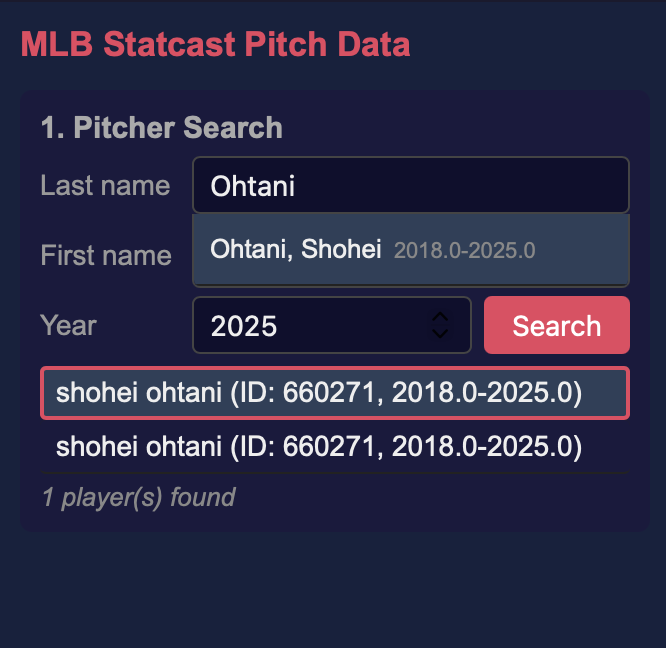
In the left panel, type a pitcher’s name (e.g., “Ohtani”) in the search box and press Enter. Select the pitcher from the results.
Step 3: Pick a Game
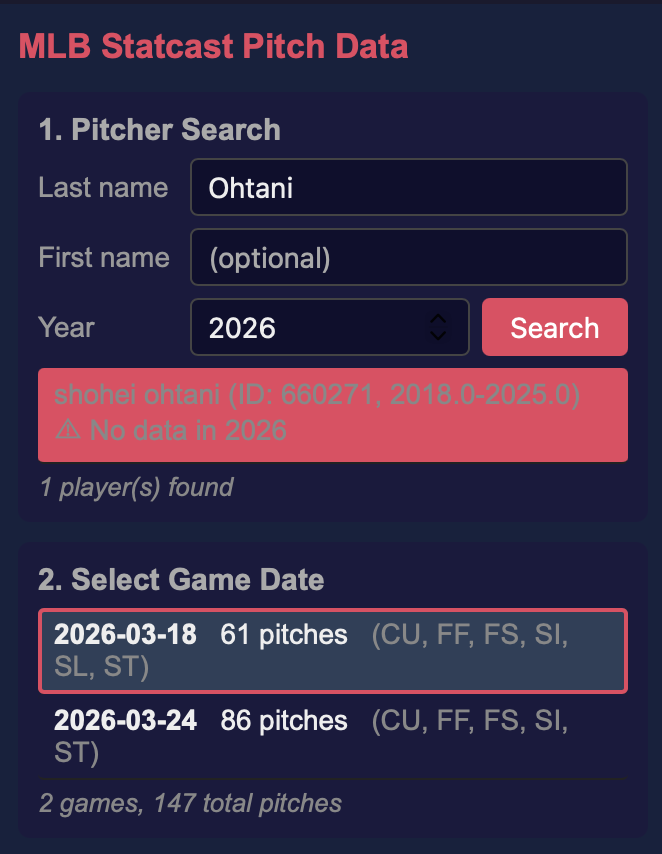
A list of game dates appears. Each entry shows the date, number of pitches, and pitch types thrown. Click a game to load its pitches.
Step 4: Pick a Pitch
The pitch list shows every pitch from that game. Each row shows:
- Pitch type — color-coded badge (FF = four-seam, SL = slider, etc.)
- Speed (mph)
- Spin rate (rpm)
Click a pitch, then click Simulate.
Step 5: Watch the Trajectory
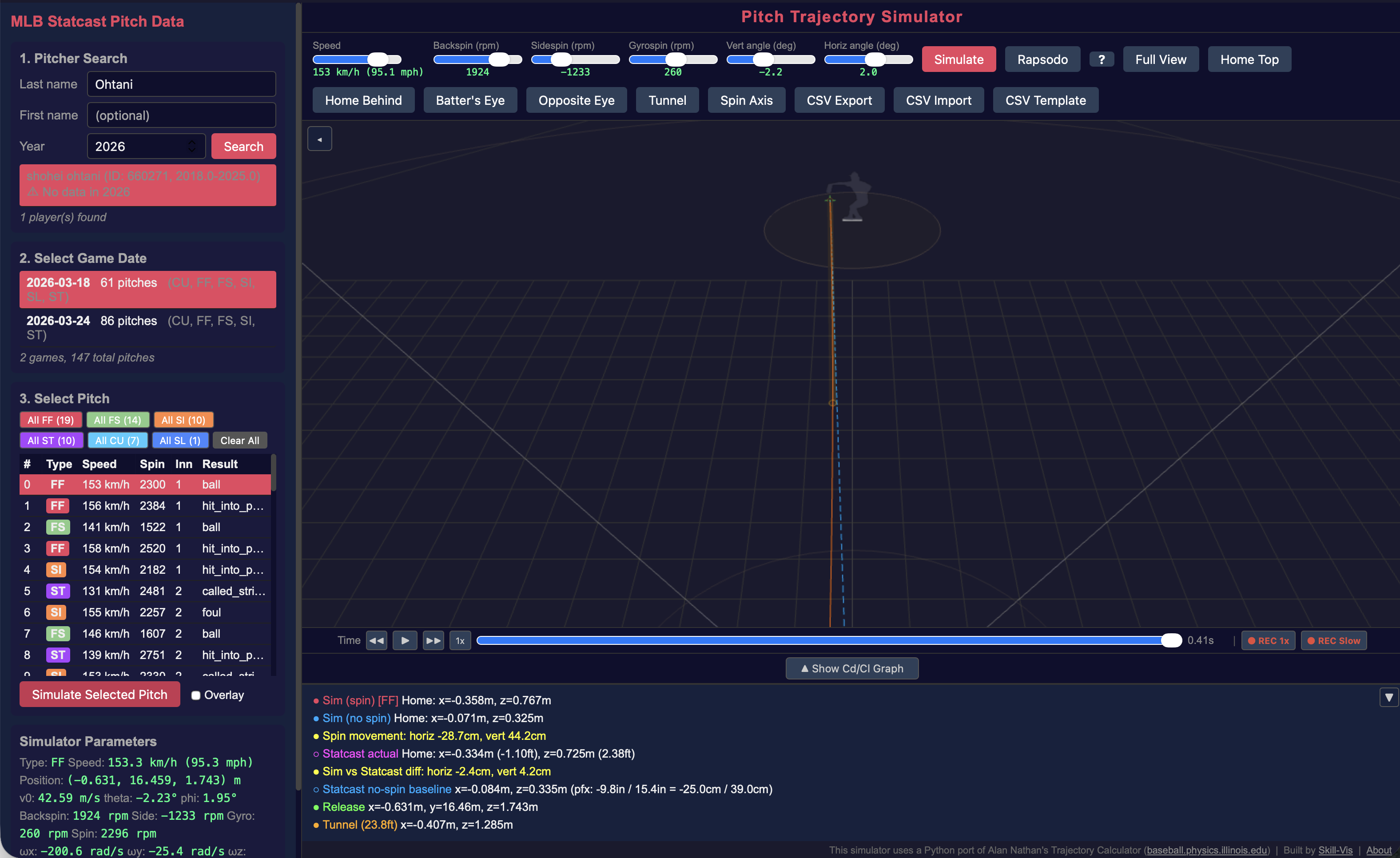
The 3D view shows:
- Orange line — the ball’s actual path (with spin effects)
- Gray line — where the ball would go with no spin (gravity only)
- Gap between the two — this is the movement created by spin
- Animated baseball — rotating at the real spin rate, with the spin axis arrow
Drag to rotate the view. Scroll to zoom.
Step 6: Try Batter’s Eye
Click the Batter’s Eye button in the toolbar. The camera moves to the batter’s box, showing you the pitch from the hitter’s perspective. You can toggle between Track: Ball (camera follows the ball) and Track: Pitcher (camera stays fixed).
What’s Next?
- Compare two pitches: Turn on Overlay mode, simulate a second pitch, and see both trajectories stacked
- Try different pitch types: Use the filter buttons (FF, SL, CH, etc.) above the pitch list
- Enter your own data: Switch to Manual Input or Rapsodo Input
- Understand the physics: Read Spin & Movement to learn what backspin, sidespin, and gyrospin mean for pitch design